Quick Start
Environment Dependencies
System Environment
It is recommended to develop and debug under Ubuntu 22.04 with ROS2 Humble. You may develop directly on the D1 built-in computer or on an external computer connected to D1.
Network Environment
Prepare a USB Type-C cable and plug it into the Type-C port closest to the Ethernet port,enter the command below to access the robot system:
ssh robot@192.168.42.1
#password : ddt
The network interface used for communication between the user’s computer and the D1 robot is in the 192.168.42.xxx subnet, and the IP is assigned automatically—no configuration is required.
Warning
Windows users cannot recognize the USB network interface after inserting the USB Type-C cable due to missing drivers. Please install the driver manually:https://milkv.io/zh/docs/duo/getting-started/setup#
Do NOT use the flashing cable for debugging, to avoid accidental entry into flashing mode, which may pree systvent them from booting properly.
Wi-Fi Hotspot Connection
To download ROS packages and other dependencies, the robot must connect to the internet. Steps:
1. Run: sudo vim /etc/wpa_supplicant/wpa_supplicant-nl80211-wlan0.conf
2. Modify the fields: ssid = "WIFI name"; psk = "Password"
3. Reboot the system after modification.
Example:
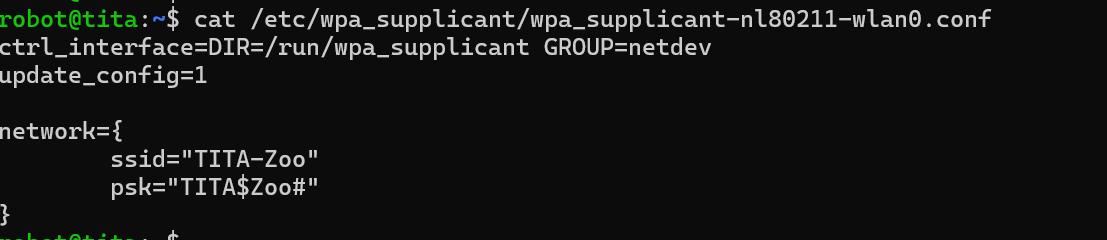
Wi-Fi AP Hotspot Mode
See details in:WIFI Hotspot Mode
Ethernet Port Configuration
This configuration is for users who want to connect an external computer to D1 using an Ethernet cable.
sudo apt update
sudo apt install network-manager
Download the configuration tool:
sudo apt-get install git  # Install git if necessary
git clone https://github.com/DDTRobot/TowerNetworkManager.git
Install:
cd TowerNetworkManager/
chmod 777 install.sh
sudo ./install.sh
sudo rm -rf /etc/wpa_supplicant/wpa_supplicant-nl80211-wlan0.conf  # Delete the original WiFi config to avoid conflicts. For future WiFi use: sudo nmcli device wifi connect "example" password "1111111"
After completing the above, ifconfig will show that eth0 obtains an IP automatically (e.g., 192.168.19.97), and external devices will be assigned IPs in the 192.168.19.xx range.
Install Build Tools
Install the build tool colcon build on the D1 system:
sudo apt update
sudo apt-get install python3-colcon-common-extensions
If installation fails, configure the following:
Create or edit a configuration file:
```
sudo vim /etc/apt/apt.conf.d/99insecure
```
Add:
```
Acquire::AllowInsecureRepositories "true";
Acquire::AllowDowngradeToInsecureRepositories "true";
```
Then run `sudo apt update` again.
ROS2 SDK
D1_sdk_ros2 is developed based on ROS2. High-level logic is encapsulated into ROS2 nodes, providing ROS2 APIs to the user.
Users send ROS2 topics to control the robot.
View ROS topics:
robot@tita:~$ ros2 topic list
/d13007137/command/cmd_key # Control command, state machine switching
/d13007137/command/cmd_pose # Control command, pose
/d13007137/command/cmd_twist # Control command, velocity
/d13007137/command/joint_command # Control command, joint velocity
/d13007137/d1_rl_controller/transition_event # D1 reinforcement learning controller transition event
/d13007137/d1h_rl_controller/transition_event # D1H reinforcement learning controller transition event
/d13007137/dynamic_joint_states # Dynamic joint states
/d13007137/imu_sensor_broadcaster/imu # IMU sensor status
/d13007137/imu_sensor_broadcaster/transition_event # IMU sensor broadcaster transition event
/d13007137/joint_state_broadcaster/transition_event # Joint state broadcaster transition event
/d13007137/joint_states # Joint information: position, velocity and torque
/d13007137/joy # Remote controller stick value related
/d13007137/rl_controller/fsm # Reinforcement learning controller finite state machine
/d13007137/rl_controller/joint_command # Reinforcement learning controller actual output: kp, kd, p, v, t
/d13007137/robot_description # Robot description
/d13007137/system_status_broadcaster/battery1 # Host battery information
/d13007137/system_status_broadcaster/battery2 # Slave battery information
/d13007137/system_status_broadcaster/dock # Splicing mechanism status
/d13007137/system_status_broadcaster/motors_status # Motors status
/d13007137/system_status_broadcaster/transition_event # System status broadcaster transition event
/parameter_events # Parameter events
/rosout # ROS output
/tf # Transform
/tf_static # Static transform
If the topics cannot be shown, add the following to the end of ~/.bashrc, then run source ~/.bashrc:
export ROS_LOCALHOST_ONLY=1
export ROS_DOMAIN_ID=42
source /opt/ros/humble/setup.bash
source /opt/d1_ros2/setup.bash
Get the Quadruped / Biped Controller Status
Get Status
source /opt/d1_ros2/namespace.sh
ros2 service call /$ROBOT_NS/command/get_controller_status std_srvs/srv/Trigger
# requester: making request: std_srvs.srv.Trigger_Request()

# response:
# std_srvs.srv.Trigger_Response(success=True, message='biped') # 'quadruped' indicates quadruped mode
Set Status
source /opt/d1_ros2/namespace.sh
ros2 service call /$ROBOT_NS/command/set_controller_status std_srvs/srv/SetBool data:\ false # true = quadruped, false = biped
# requester: making request: std_srvs.srv.SetBool_Request(data=False)

# response:
# std_srvs.srv.SetBool_Response(success=True, message='biped')
Upper-Level command_sdk Interface
When the remote controller is in “08 SDK Mode”, entries with * indicate that the controller does NOT send command topics; users must publish them manually.
command/cmd_keyTopic type:
std_msgs/msg/StringControls robot state machine. States include:transform_upidletransform_downlocojoint_pdcarrl_1rl_2rl_3jump
Notes:
Biped-wheeled mode switching states:transform_up, transform_down, car, loco
idle is an idle state. After transform_down, the system automatically enters idle.
Quadruped mode switching states:transform_up, transform_down, loco
Same rule: transform_down → auto idle.
Example:
source /opt/d1_ros2/namespace.sh

# Stand up
ros2 topic pub -1 /$ROBOT_NS/command/cmd_key std_msgs/msg/String "data: 'transform_up'"

# Lie down
ros2 topic pub -1 /$ROBOT_NS/command/cmd_key std_msgs/msg/String "data: 'transform_down'"

# Flat-ground locomotion
ros2 topic pub -1 /$ROBOT_NS/command/cmd_key std_msgs/msg/String "data: 'loco'"

# Strategy 1
ros2 topic pub -1 /$ROBOT_NS/command/cmd_key std_msgs/msg/String "data: 'rl_1'"

# jump
ros2 topic pub -1 /$ROBOT_NS/command/cmd_key std_msgs/msg/String "data: 'jump'"
...
cmd_vel control
Topic type: geometry_msgs/msg/PoseStamped
Controls robot head pose (currently only pitch in biped loco state).
source /opt/d1_ros2/setup.bash
source /opt/d1_ros2/namespace.sh
ros2 topic pub /$ROBOT_NS/command/user_command ddt_msgs/msg/UserCommand "{
    twist: {
        linear: {x: 0.5, y: 0.0, z: 0.0},
        angular: {x: 0.0, y: 0.0, z: 0.0}
    }
}"

...
in now robot keep vel forward
pose control
source /opt/d1_ros2/setup.bash
source /opt/d1_ros2/namespace.sh
ros2 topic pub /$ROBOT_NS/command/user_command ddt_msgs/msg/UserCommand "{
    pose: {
        position: {x: 0.0, y: 0.0, z: 0.0}, # only valid in z,range in 0.1 to 0.3
        orientation: {x: 0.0, y: 0.171, z: 0.0, w: 0.985}
        }
}"
5 /command/joint_command
A new joint control interface is added. Pop up the remote controller’s left_button and set the left_switch to the topmost position. The controller will then enter the debug state, where this topic can be sent.

source /opt/d1_ros2/namespace.sh
source /opt/d1_ros2/setup.bash
ros2 topic pub /$ROBOT_NS/command/joint_command ddt_msgs/msg/JointControlCommand   "{
    name: ['FL_foot_joint'],
    kp: [0.0],
    kd: [0.5],
    position: [0.0],
    velocity: [1.0],
    effort: [0.0]
  }" --rate 10
At this point, it can be observed that the left leg wheel is rotating, and it stops rotating after pressing Ctrl+c.